Warping & Morphing Images Using The SplineWarp Node In Nuke
⭐ A deep dive into how to warp, blend, and morph between images using the SplineWarp node…
⭐ A deep dive into how to warp, blend, and morph between images using the SplineWarp node…
⭐ Companions: Please sign in to access the full article 😊
This is a Companions Exclusive Tutorial
Or, buy the guide as a PDF:
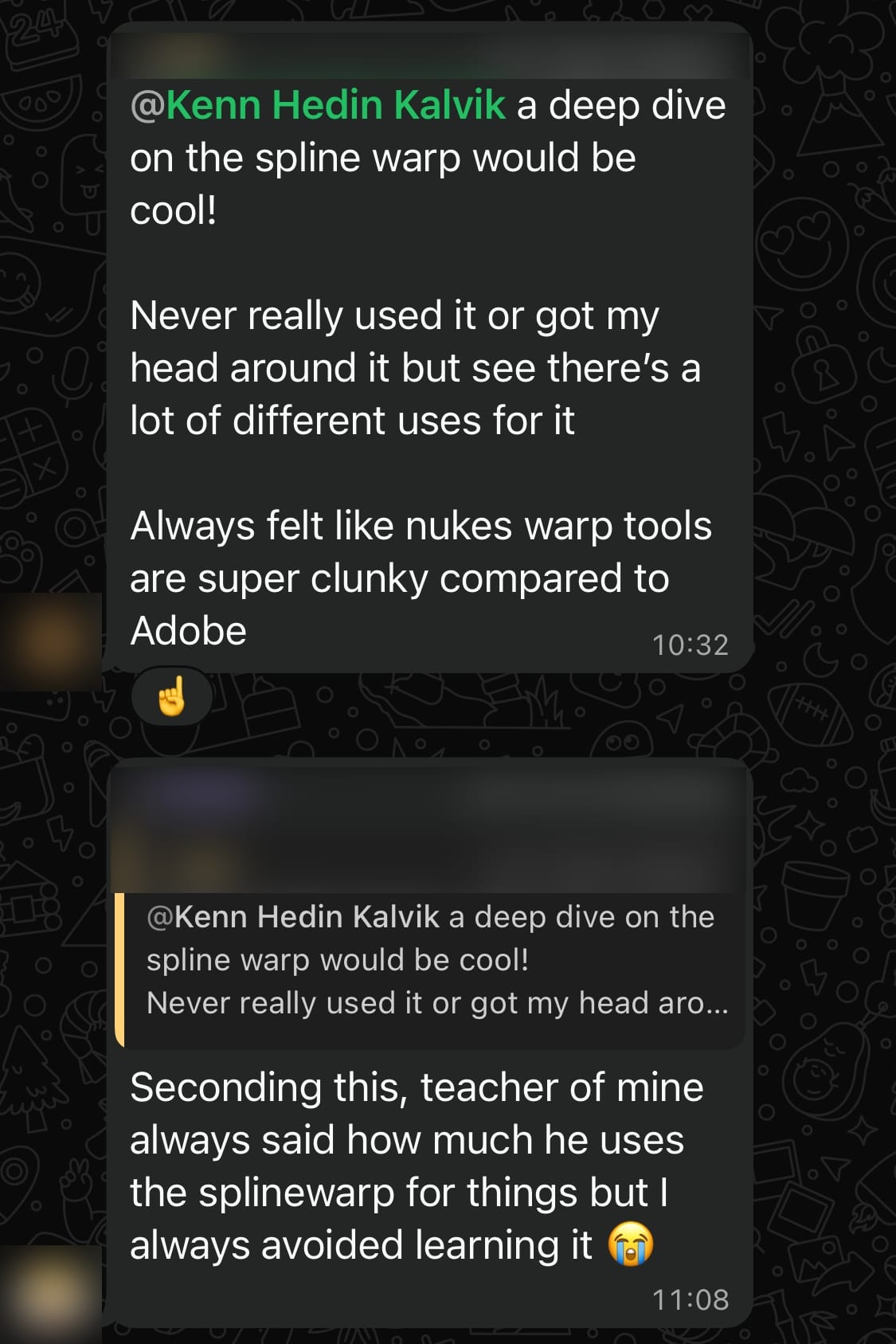
The topic for this guide was suggested by two of the Companions in our WhatsApp group chat:
Overview
The SplineWarp node is one of those nodes in Nuke, which – even though it’s been around for a long time – many people haven’t looked into or properly understood yet.
It can be a super useful tool, however, and so in this guide we’ll do a deep dive into the capabilities of this node.
Essentially, the SplineWarp node is used to warp/deform an image (or image sequence), or to morph between two images (or image sequences), based on user-created source and destination roto shapes and/or pins (i.e. single-point curves that sort of act like thumb tacks).
Unlike the GridWarp node, the SplineWarp node lets you draw/place these roto shapes/pins anywhere on either image (or image sequence) – i.e. the A-input and the B-input – rather than only add points on existing grid lines. And, the corresponding shapes can have differing numbers of points.
The SplineWarp node has many use cases, and in this guide we’ll look at how we can use it for:
- Beauty work – to slim down faces or bodies, or to bulk up muscles, for example.
- Morphing from one image to another, e.g. transforming one person or object into a different person/object.
- Tracking textures onto non-rigid surfaces, for tasks such as replacing the pages of books or newspapers.
- Nudging misaligned CG/DMP/elements into place, for the cases where the renders are almost in the right position in the frame but not quite. For example, when a CG holdout isn’t matching the object in the scan.
- Matchmoving and stabilising plates with any number of points, getting finer control.
- Achieving creative effects such as squashing or stretching, inflating or deflating objects, or curving the perspective.
- Splicing between two different takes, or two different sections of the same take, i.e. a seamless, bridged jump cut.
The SplineWarp Node
First, let’s take a close look at the SplineWarp node itself.